Qwen Image Edit Plus Prompting Guide: How to Write Edit Instructions That Actually Work
Most image models take a description and create something from scratch. Qwen Image Edit Plus works differently. You give it an existing image and tell it what to change. That distinction matters more than it sounds. If you prompt Qwen Image Edit like a generator, you’ll get bad results – and this guide exists so you don’t have to figure out why on your own.
This Is Not img2img
If you’ve used FLUX or Z-Image Turbo, you know the workflow: write a description of the image you want, adjust guidance and steps, get a result. The prompt describes the output.
Qwen Image Edit Plus flips that. The prompt describes the operation – what the model should do to an image you already have.
Generator prompt:
A red sports car on a mountain road at sunset, cinematic lighting
Edit prompt:
Change the car color to red. Keep everything else identical.
The first creates from scratch. The second takes your photo and changes one thing, preserving composition, lighting, and everything you didn’t explicitly ask to touch.
Write generator-style descriptions for Qwen Image Edit, and it will ignore your input image and hallucinate something loosely related.
Prompt Anatomy
Every good edit prompt has four parts:
Operation – what to do (imperative verb: change, remove, replace, add)
Target – what to change (specific object or region in the image)
Specification – how to change it (concrete details about the result)
Preservation clause – what to keep untouched
Here’s the formula in practice:
Replace the dog in the foreground with a golden retriever. Keep the lighting and background identical.
- Operation:
Replace - Target:
the dog in the foreground - Specification:
with a golden retriever - Preservation:
Keep the lighting and background identical
The preservation clause is the most important part. Without it, Qwen Image Edit can be aggressive and change more than you intended. A simple “keep all other elements unchanged” at the end of your prompt prevents most unwanted drift.
One operation per prompt. “Change the hair, remove the background, and add sunglasses” in a single request confuses the model. For multiple changes, chain edits: the output of one becomes the input to the next.
Three Example Prompts
1. Text Editing Inside Images
This is Qwen Image Edit’s flagship capability. The model handles Chinese and English text with surprising accuracy, changing content and typography while preserving the layout around it.
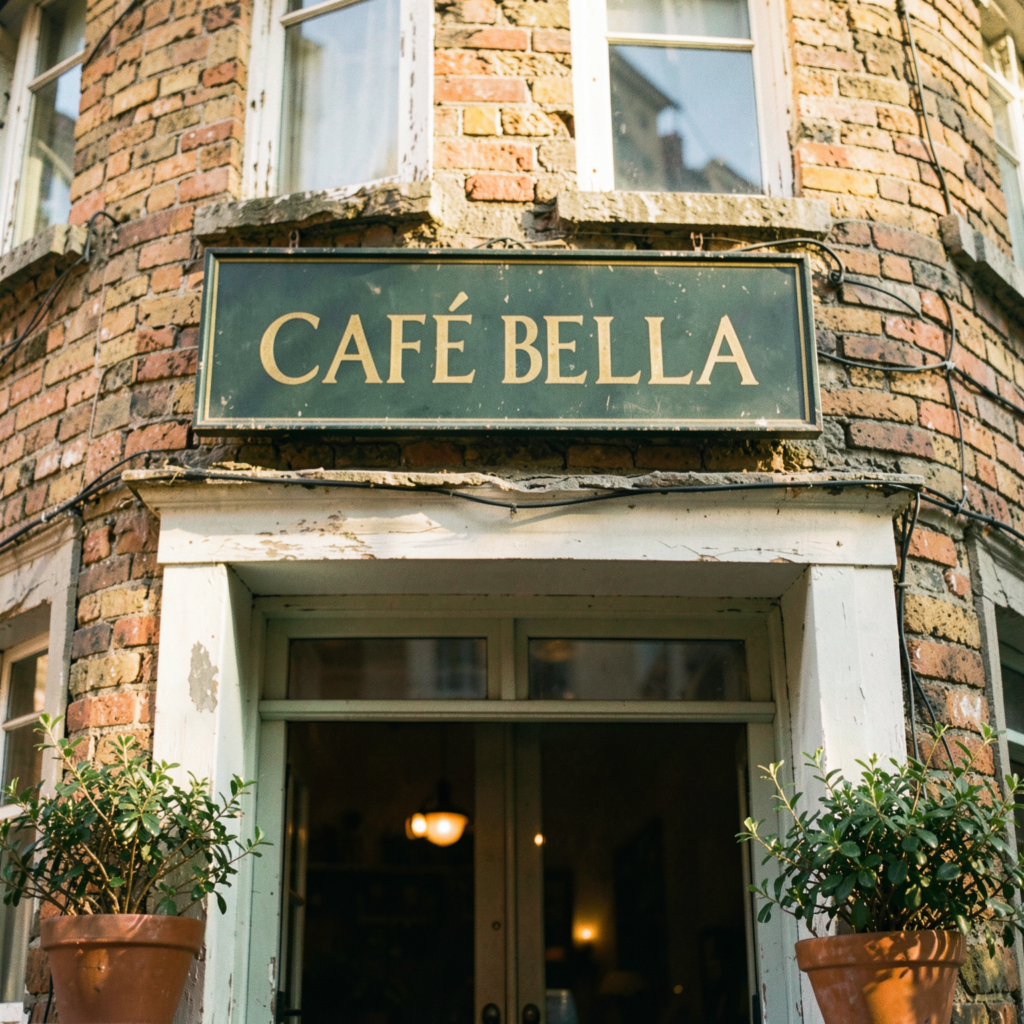
Scenario: A photo of a café façade with a sign reading “CAFÉ BELLA”.
Prompt:
Change the sign text from “CAFÉ BELLA” to “LIBRARY BAR”. Keep the same serif gold lettering, same font style, same vintage weathered patina, same sign placement and lighting. Do not alter any other element of the scene.
Negative prompt:
misspelled letters, garbled text, different font, changed color, blurred typography

Two things make this work. First, quoting both old and new text — from "CAFÉ BELLA" to "LIBRARY BAR" — gives the model unambiguous targets. Writing “change the sign to say Bakery” without quoting is noticeably less precise.
Second, locking the typography explicitly (“same serif gold lettering”) prevents the model from drifting to a default sans-serif. Qwen Image Edit understands typographic instructions well. Use them.
2. Object Removal
Qwen Image Edit removes objects and fills the gap with coherent context. You describe what to remove, the model finds it and fills the space.
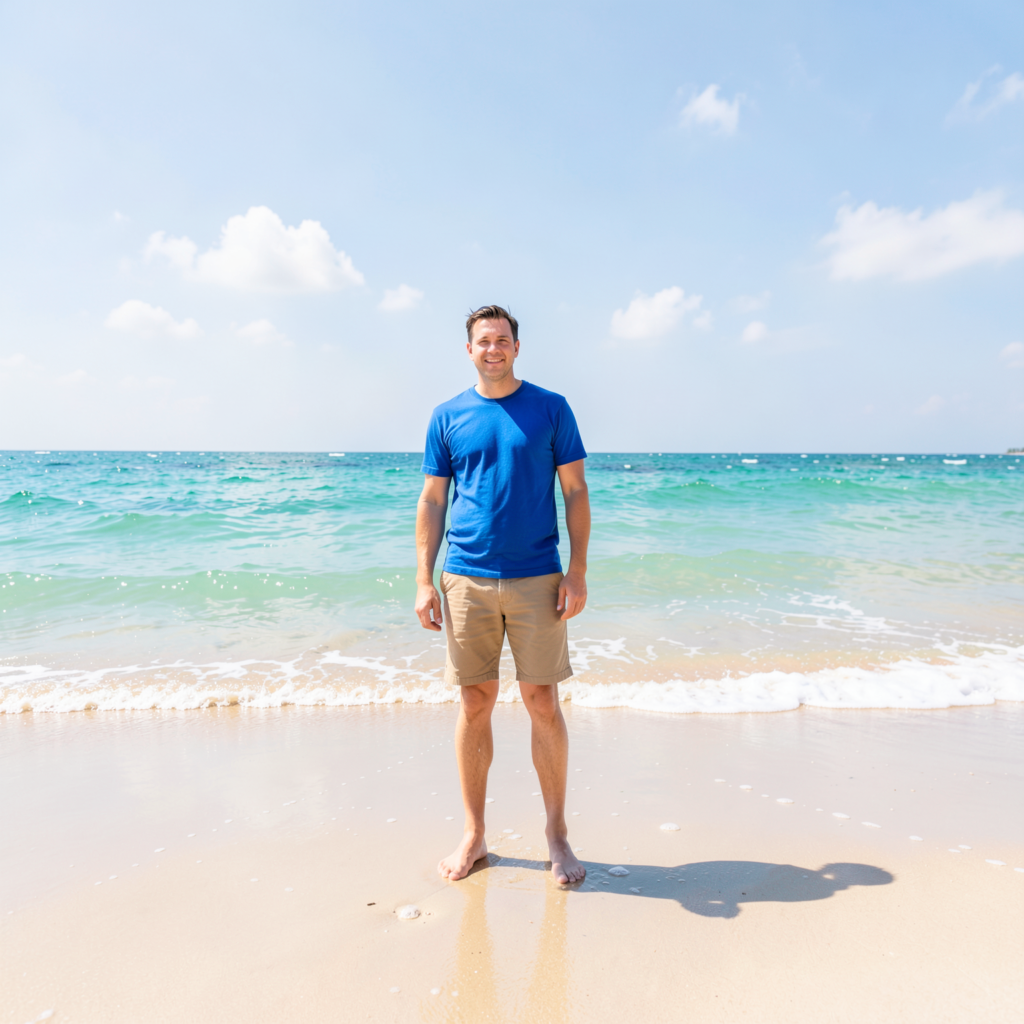
Scenario: A beach photo with a tourist in a blue shirt standing in the middle of the frame.
Prompt:
Remove the person in the blue shirt standing in the middle of the frame. Fill the empty area with matching sand, waves and sky. Preserve all other elements, lighting direction, shadow patterns and overall composition exactly as in the original.
Negative prompt:
person still visible, ghost outline, color patch, unnatural fill, broken horizon

When multiple similar objects exist in the frame, position matters. “The second person from the left” or “the person in the blue shirt near the umbrella” resolves ambiguity. The more precise your target description, the cleaner the removal.
3. Background Swap
A practical e-commerce workflow: keep the product identical, replace everything around it.
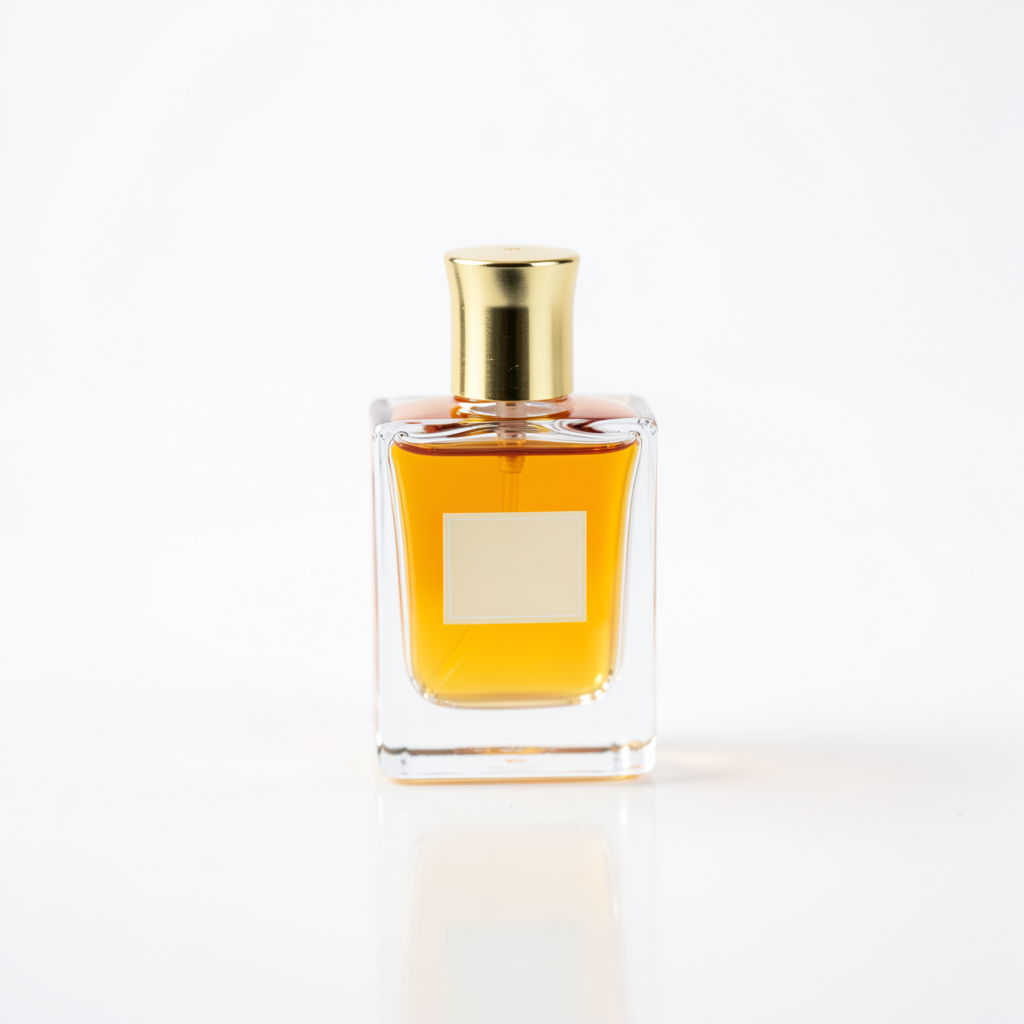
Scenario: A photo of a perfume bottle on a white table.
Prompt:
Keep the perfume bottle exactly as in the original – same angle, same lighting on the glass, same reflections. Replace only the background and surface: place the bottle on a polished black marble surface, with a blurred dark emerald velvet curtain in the background, soft golden rim light from upper right.
Negative prompt:
changed bottle shape, altered label, different proportions, shifted perspective

Notice the prompt leads with preservation, not with the change. Telling the model what to protect first anchors the product. The background description fills in the rest. Adding a coherent lighting direction (“golden rim light from upper right”) creates a believable new scene instead of a cut-and-paste look.
Parameters That Matter
Steps
Qwen Image Edit Plus is not turbo-distilled. Unlike FLUX Schnell or Z-Image Turbo where 4 steps is the sweet spot, this model genuinely improves with more steps.
| Steps | When to use |
|---|---|
| 1-10 | Don’t. Output will be blurry, text will be garbled. |
| 20-30 | Simple recolors, basic object removal. Fine for fast iteration. |
| 40 (default) | Recommended for production. The authors’ official sweet spot. |
| 50 | Complex text edits with long strings. Marginal improvement, longer wait. |
Leave it at 40 unless you have a reason not to.
Resolution
Output inherits the aspect ratio of your input image. Feed in 1024×768, get back 1024×768. The resolution range is 256-1024 pixels per side.
768×768 is the default and works for most edits. Go to 1024×1024 when detail matters – small text on signs, or skin texture in portraits. Smaller sizes (256-512) are only useful for quick proof-of-concept runs.
If you need a different aspect ratio in the output, crop or pad the input image beforehand.
Negative Prompt
Qwen Image Edit Plus actually processes the negative prompt, unlike some diffusion models where it’s decorative. Keep it focused: 3-6 terms aimed at the specific failure mode you’re trying to prevent.
Text edits tend to garble letters, so target that: misspelled letters, garbled text, blurred typography. Face edits have a different risk – identity drift – which means distorted face, different person, altered skin tone does more work than generic quality terms.
A 20-term negative prompt dilutes the signal. Think about what could go wrong in this specific edit, and target that.
Common Mistakes
Writing descriptions instead of instructions. “A woman with short brown hair in a blue blouse, studio portrait” won’t produce a useful edit. Instead: “Change the hair to a short brown bob. Keep the face, blouse and lighting as in the original.”
Stacking multiple operations. “Change hair to blonde, remove the background, add sunglasses, make it cartoon style.” The model loses coherence after the first operation. Chain edits sequentially, one per API call.
Skipping the preservation clause. Without “keep X unchanged,” the model tends to change more than you intended. Always close your prompt with explicit protection.
Using low step counts for text edits. Steps=4 for changing sign text will produce garbled letters. This model needs 40 steps to handle typography cleanly.
Expecting different output proportions. A square input produces square output. Crop your source image to the target aspect ratio before sending it to the API.
Tips
Chain edits for complex changes. Run 2-3 sequential API calls instead of one ambitious prompt: change the background, then adjust the lighting on the result, then fix the text. Each step is less risky and more controllable.
Quote text exactly. Change the sign from "CAFÉ" to "BAKERY" is meaningfully more precise than Change the sign to say Bakery instead of Cafe. The quotes help the model locate the target string.
Reinforce face preservation with negative prompts. “Preserve facial identity” in the prompt works well on its own. But when everything else changes radically (new background, new lighting), pair it with different person, changed face in the negative prompt. If that’s not enough, split the edit into two steps.
“Restore this old photograph” is a shortcut worth knowing. It triggers an internal restoration mode that handles scratch removal, denoising, and colorization in a single pass. Useful for archival images without crafting a complex prompt.
Making Your First Edit via API
The deAPI endpoint for image editing is POST /api/v2/images/edits. It accepts multipart form data, so you upload the source image alongside your prompt and parameters.
Here’s a complete Python example: submit an edit, poll for the result, and download the output.
import requests
import time

API_KEY = "your_api_key"
BASE = "<https://api.deapi.ai>"
HEADERS = {"Authorization": f"Bearer {API_KEY}", "Accept": "application/json"}

# 1. Submit the edit request
with open("input.jpg", "rb") as img:
    resp = requests.post(
        f"{BASE}/api/v2/images/edits",
        headers=HEADERS,
        data={
            "prompt": 'Change the sign text from "OPEN" to "CLOSED". '
                      'Keep the same font, color, and style.',
            "model": "QwenImageEdit_Plus_NF4",
            "steps": 40,
            "seed": -1,
            "negative_prompt": "misspelled letters, garbled text, different font",
        },
        files={"image": ("input.jpg", img, "image/jpeg")},
    )

resp.raise_for_status()
request_id = resp.json()["data"]["request_id"]
print(f"Submitted: {request_id}")

# 2. Poll until the job finishes
while True:
    job = requests.get(
        f"{BASE}/api/v2/jobs/{request_id}", headers=HEADERS
    ).json()["data"]

    if job["status"] == "done":
        result_url = job["result_url"]
        print(f"Done: {result_url}")
        break
    if job["status"] == "error":
        raise RuntimeError(f"Edit failed: {job}")

    time.sleep(3)

# 3. Download the edited image
result = requests.get(result_url)
with open("output.jpg", "wb") as f:
    f.write(result.content)
The async pattern is the same across all deAPI generation endpoints: POST returns a request_id, poll GET /api/v2/jobs/{request_id} until status flips to "done", then grab the image from result_url.
The difference between a mediocre edit and a clean one is almost never the model. It’s the prompt. Qwen Image Edit Plus gives you precise control over what changes and what stays – but only if you tell it exactly what you want preserved.
Start with single-operation edits. Get comfortable with the four-part prompt structure. When you need something complex, chain two or three calls instead of cramming everything into one prompt.
Sign up at deapi.ai to get $5 in free credits – enough for dozens of edits to find your workflow.