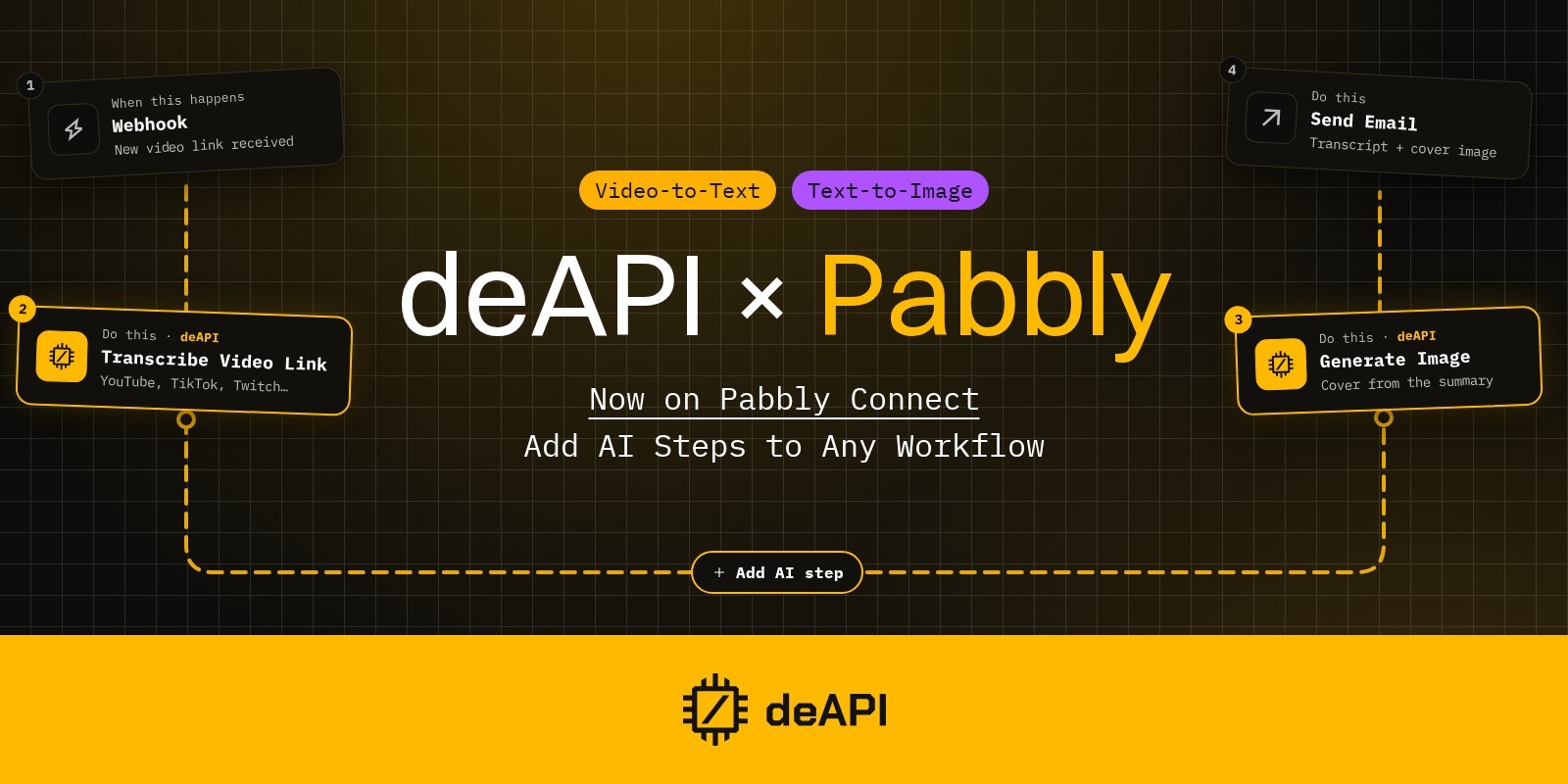
deAPI Is Now on Pabbly Connect: Add AI Steps to Any Workflow
Pabbly Connect workflows move data between apps: a form submission lands in a CRM, a new order shows up in Slack. deAPI is now one of those apps. Its actions add AI image, video, music, speech and transcription steps to any Pabbly workflow, and you configure them like every other step.
What the deAPI app can do
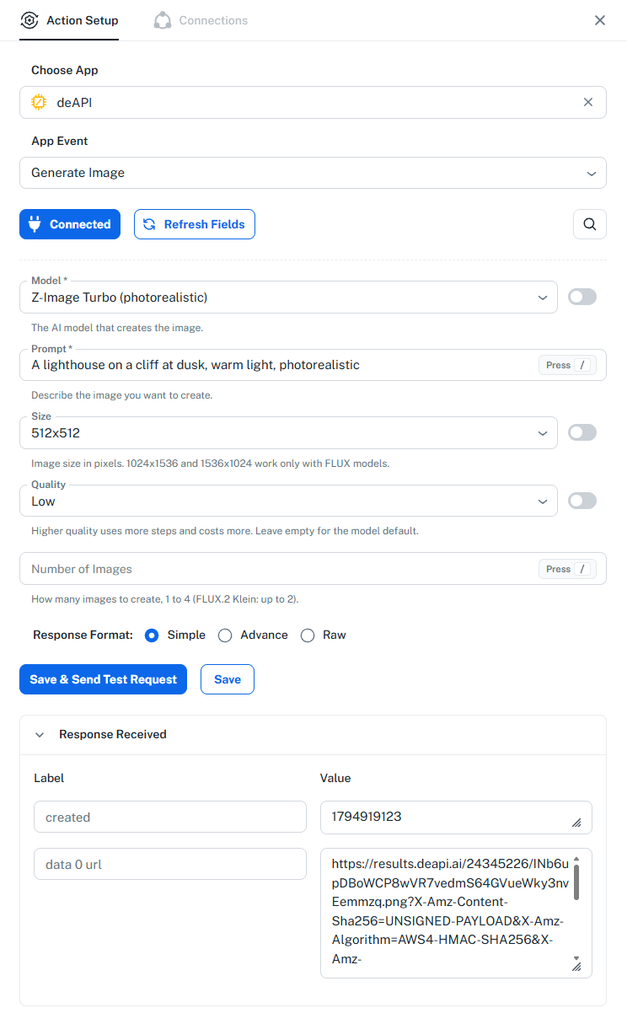
Four actions work on images. Generate Image creates an image from a text prompt and Edit Image changes an existing one based on a written instruction. Remove Background and Upscale Image handle product photos, cutting out the subject and raising the resolution.
Generate Video makes a short clip from a prompt. Animate Image takes a still image and sets it in motion. Music and voice get one action each: Generate Music for songs and instrumental tracks, Text To Speech for reading text out loud.
For transcription, paste a YouTube, X, TikTok, Twitch or Kick link into Transcribe Video Link. Transcribe Audio File takes any public audio or video file.
You pick the model inside the action. Generate Image offers Z-Image Turbo, FLUX.1 schnell, FLUX.2 Klein 4B and Z-Anime. The video and transcription actions load their model lists from the deAPI catalog, so new models appear in Pabbly as soon as we add them. If you’re picking an image model, our prompting guides for Z-Image Turbo and FLUX.2 Klein show what each one does well.

Three workflows to start with
A content team keeps post ideas in Google Sheets. Each new row triggers Generate Image, the image goes to a shared Drive folder, and its link is written back into the sheet next to the prompt.
Every new video on your YouTube channel can become text for show notes. Transcribe Video Link takes the video URL from the trigger and a Slack step posts the transcript to your team. Swap the YouTube trigger for a form, and the same workflow transcribes any link someone submits.
Online stores can drop raw product photos into one Drive folder and collect clean, high-resolution cutouts from another, with Remove Background and Upscale Image running in between.
Getting started
Create a key in the deAPI dashboard under Settings → API Keys and paste it when Pabbly asks you to connect the app. Give the key the API role, which runs every generation and transcription action but can’t touch billing. A spend limit on the same key stops a misfiring trigger from draining your balance overnight.
Generate Image and Edit Image return the finished file in the same step. The other actions process the job in the background and return a request ID. To pick up the result, add a Delay step and then the deAPI Get Job Result action.
The deAPI app is live on Pabbly Connect. New accounts get $5 in free credits to test it.